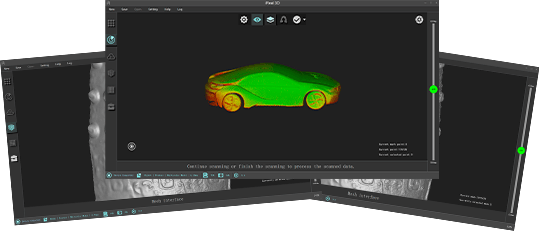
What do the three parameters—”Memory,” “Disk Space,” and “VRAM”—at the bottom left of the 3DeVOK Studio scanning software represent?
Memory: determines the computer’s ability to run the scanner and process data. If insufficient, scanning fails: so expanding the virtual memory is necessary. Usage above 80% may cause software crashes: the project should be saved immediately.
Disk Space: defines data storage capacity. While it affects file saving, it is unrelated to operational speed.
Video Memory: governs real-time rendering and computing performance. If insufficient, issues such as display abnormalities, data loss, or crashes may arise. If usage exceeds 80%, the project should be saved immediately.

When scanning with marker mode in 3DeVOK Studio scanning software, insufficient markers cause poor alignment, and re-scanning is inconvenient:
①Pause scanning and add markers to sparse areas.
②In the software, enable “Add Mark Points” under “Scan Mode” > “More” > “Common” before resuming.
*Note: New markers aid real-time alignment only and do not affect accuracy calculations. For precision, ensure sufficient markers are attached before scanning.

Can the colored 3D model files (OBJ) obtained from 3D scanning be directly used for 3D printing?
Yes, they can be used for printing, but you need to ensure the model is a closed, defect-free mesh.
For example, in Bambu Studio, follow these steps:
Click “File” in the top right corner → “Import,” and select the corresponding OBJ file.
If the model has holes or defects after importing, use the 3DeVOK Studio software or Geomagic Wrap “Repair” and “Fill Holes” functions to fix the mesh, ensuring it is ready for printing. Consider support structures, printer size, material, and other limitations as well.

Why does the “Smart Surface” function in QUICKSURFACE sometimes create surfaces with holes?
This is usually because the original mesh model is not fully closed (it contains holes or gaps). The “Smart Surface” function generates surfaces based on the mesh topology, and if the mesh has defects, the generated surface will also be incomplete.
Recommended Action: Before using “Smart Surface,” use functions like “Fill Holes” or “Mesh Repair” to ensure the mesh is fully closed, which will avoid this issue.

In QUICKSURFACE, if I accidentally zoom or pan too far and lose sight of my object, how can I quickly bring it back into view?
Simply right-click on any empty area in the viewport and select “Zoom to Fit” from the context menu. This will immediately center and resize the view to display all visible objects.

This will quickly reposition the object to the center of the view and adjust it to fit the display.

How can I use the “Manual Point Alignment” function in Absolute Orientation?
Aligning corresponding points: The grid needs to be in the same viewport as the photo image. Use the ALT key to zoom in on a local area. Select corresponding points with the left mouse button. Press the space bar to switch between the grid and the photo. When there are at least 6 pairs of corresponding points, click {Align} – corresponding points alignment.

What type of network cable should I use if the original one is damaged or lost?
The device uses a Category 6 (Cat 6) Ethernet cable. For optimal performance, we recommend replacing it with an equivalent Cat 6 cable.
What should I do if calibration fails or severe data loss occurs with a new device?
New devices are equipped with a transparent protective film on the lens surface. Please remove this film before use.
If issues persist after film removal, please contact technical support for further assistance.
Can damaged or stained scanning markers still be used?
It is not recommended to use damaged or stained markers. Any alteration to their shape or contrast can interfere with software recognition (e.g., in 3DeVOK Studio), potentially causing misalignment, failed marker detection, or errors in the final scan data.
Recommended Actions:
Best Practices:
Replace Promptly: If markers are visibly damaged or dirty, replace them with new, undamaged ones.
Store Carefully: Keep markers clean and properly stored before and after use to avoid contamination.
Apply Properly: Ensure markers lie flat without wrinkles or glare to maximize recognition accuracy
How to choose a turntable for use with a 3D scanner? Are there any specific size recommendations?
Size Selection Criteria:
Core Principle: The diameter of the turntable should be significantly larger than the bottom size of the object being measured.
General Recommendations:
Small objects (e.g., parts, crafts): Recommended turntable diameter of 20-30 cm.
Medium objects (e.g., shoe boxes, helmets): Recommended turntable diameter of 40-60 cm.
For scanning large objects, consider a custom or professional large turntable.
Purchase Suggestions: When selecting a turntable, prioritize the product’s load-bearing capacity and smooth rotation to ensure stability and smooth operation during scanning.
After opening the 3DeVOK Studio software, it can’t import the EPJ file (EPJ is a scanning project file). How can I resolve this?
Reason:
The device has not been connected, and the necessary KSET configuration file is missing.
Solution:
01. If there is a device available, simply connect the device, and the software will automatically activate and generate the configuration file.
02. If no device is available, you will need to manually import the KSET configuration file.
Follow these steps:
Copy the “KSET” folder from a USB drive / EPJ folder.
Right-click on the 3DeVOK Studio shortcut and select “Open file location.”

Go to the software’s root directory (D:\3DeVOK Studio\3DeVOK Studio).
Paste the “KSET” folder and ensure it contains the necessary configuration files
Restart the software, and you should be able to import the EPJ file successfully.

In QUICKSURFACE, what are the quick methods for extruding a 2D sketch?
Within the extrusion feature, first click and drag the yellow arrow on the top or bottom face to freely extrude the solid. While holding down the Ctrl key, move the cursor to the target plane you want to align with—the geometry will snap to it. The same method applies to both the top and bottom faces. Click OK to confirm and finish.