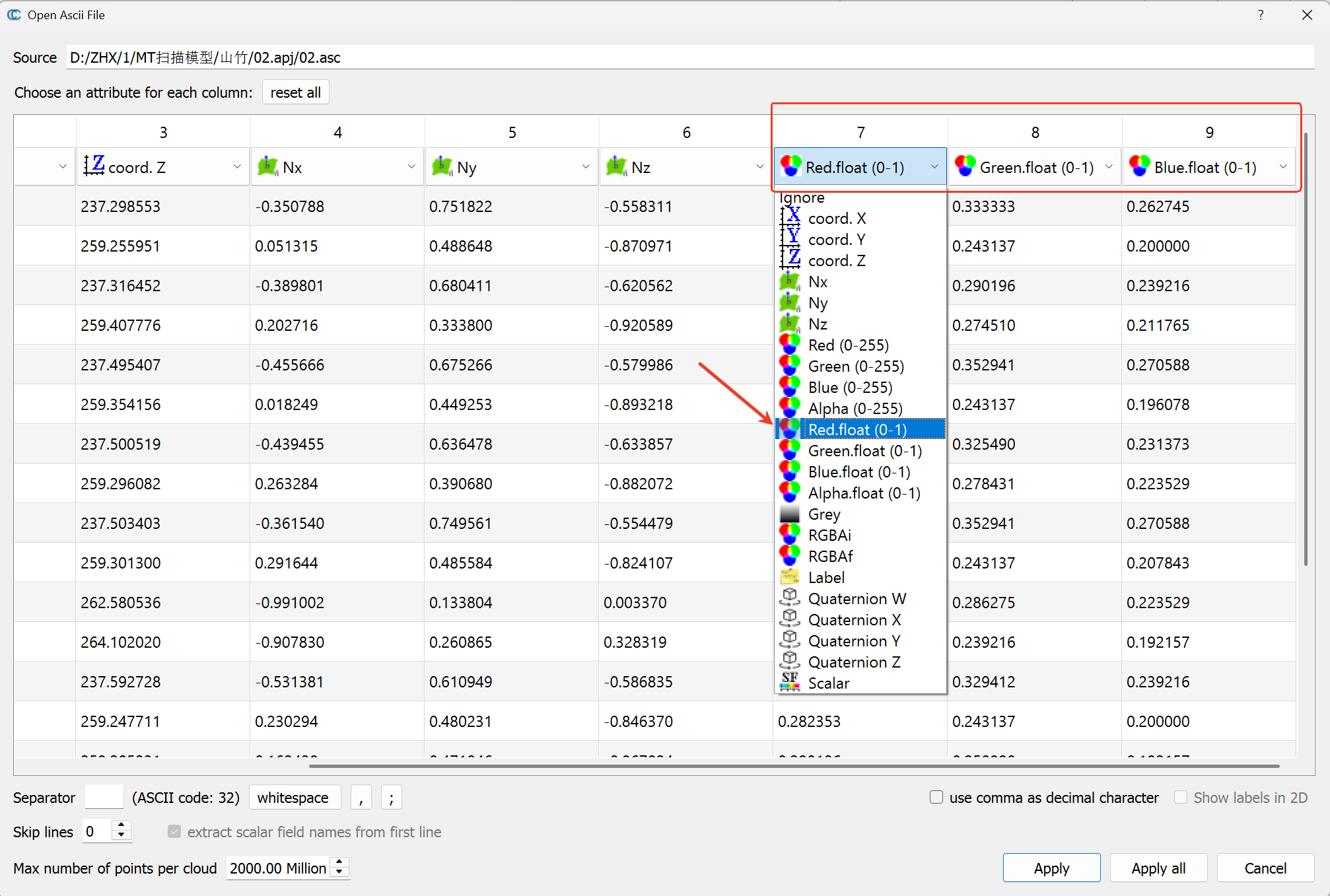
How to Import a Colored ASC Point Cloud into CloudCompare:
-Open CloudCompare and import your ASC file by either dragging it in or going to 【File】> 【Open】.
-In the pop-up “ASCII file import” dialog, you need to manually assign the color channels.
-Set columns 7, 8, and 9 as follows:
Column 7 → Red (float 0-1)
Column 8 → Green (float 0-1)
Column 9 → Blue (float 0-1)
-Click 【OK】 or 【Apply】 to import the colored point cloud.