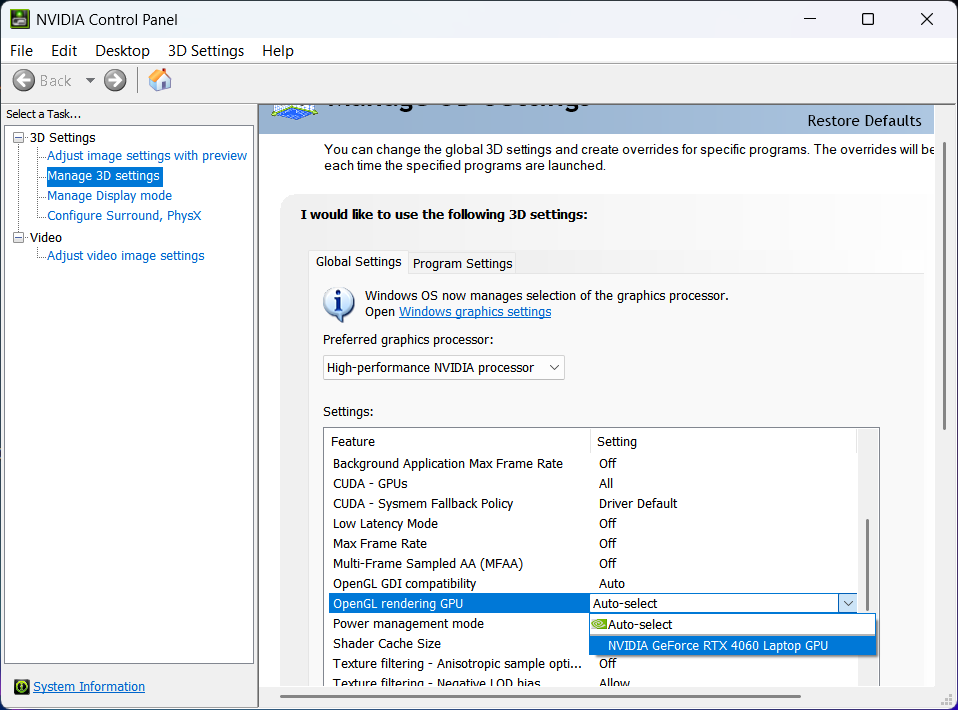
What are the configuration requirements or recommended settings for computers equipped with NVIDIA RTX 50 series graphics cards when using 3DeVOK Studio software?
To ensure the stable operation of 3DeVOK Studio when using NVIDIA RTX 50 series graphics cards and avoid compatibility issues, software crashes, or failures such as no data during real-time laser scanning, please follow the instructions below before starting scanning tasks. The operational guidelines are as follows:
Display Settings
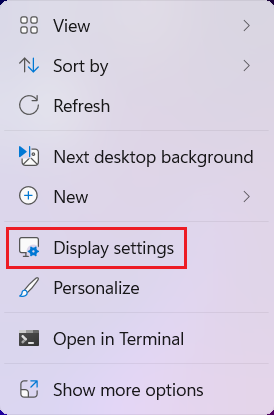
- Right-click anywhere on the desktop to open the options.
- Click to enter: Display Settings.
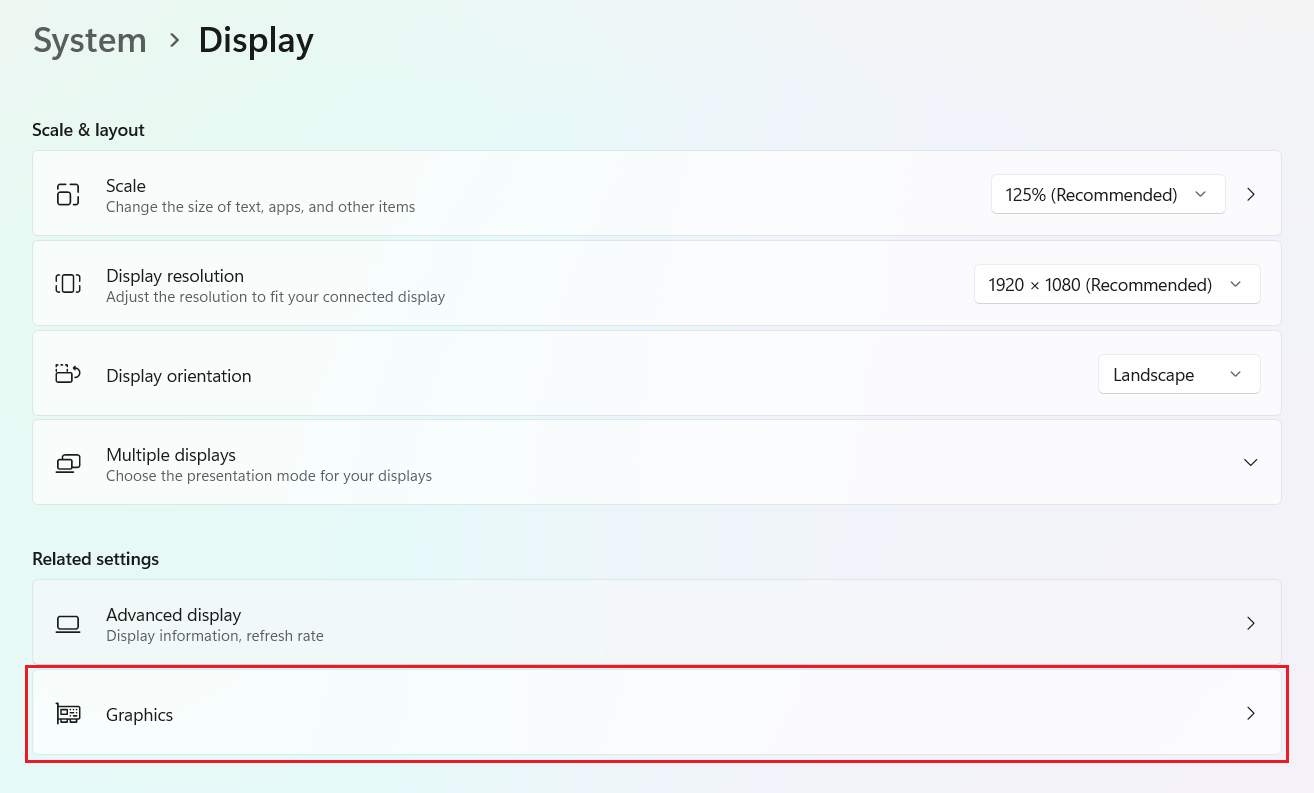
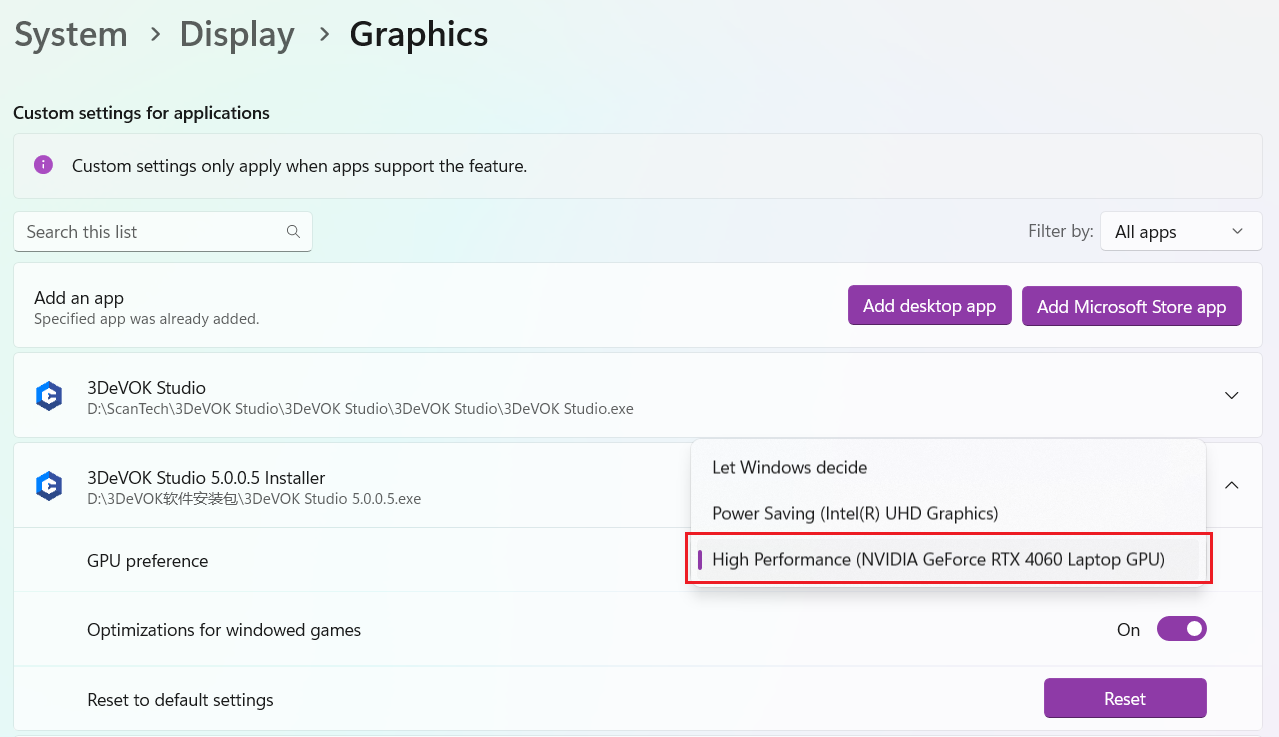
- Find System > Display > Related Settings > Graphics
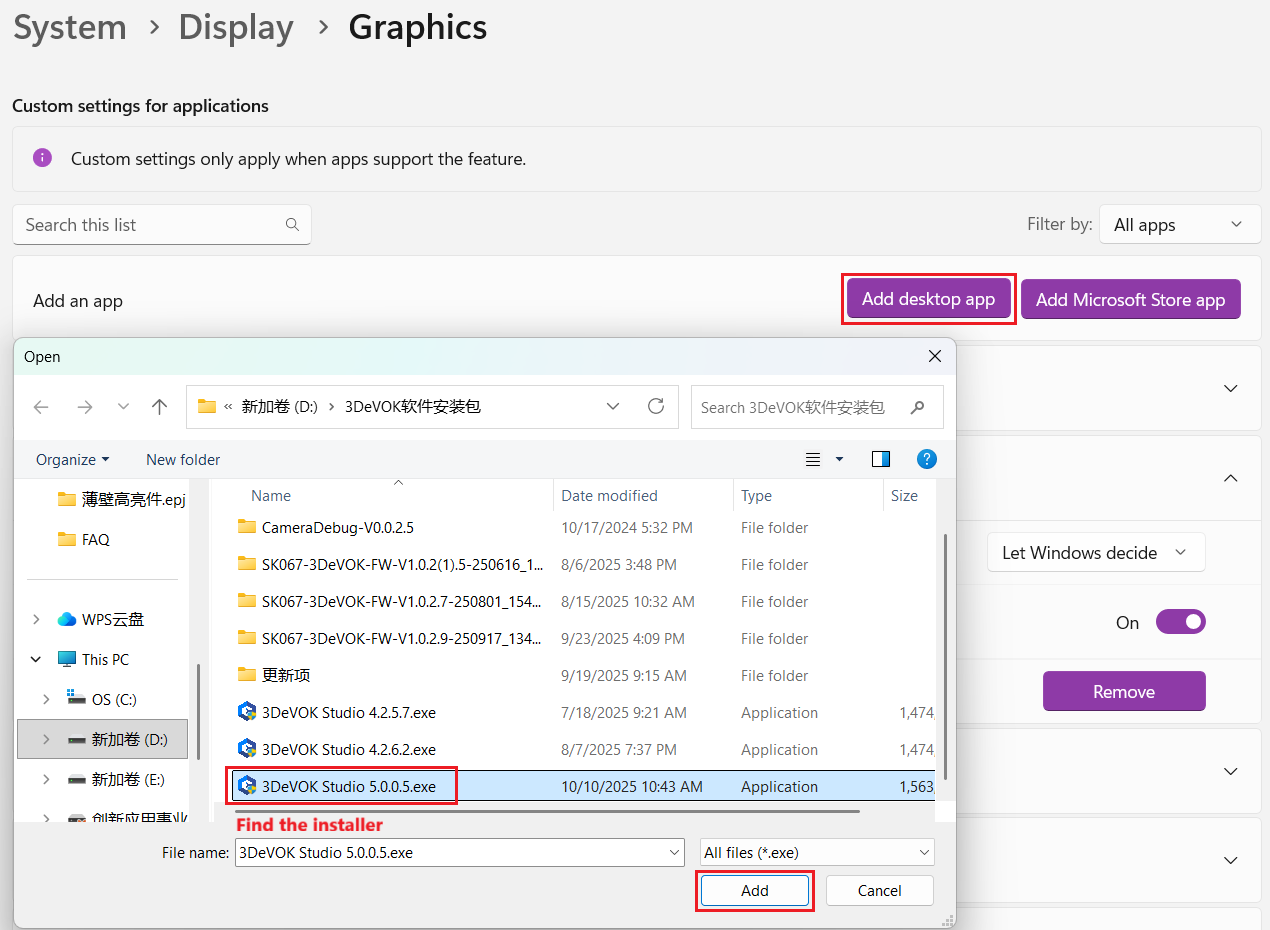
- Add desktop application: the installation package of 3DeVOK Studio.
- Select GPU preference: High-performance (NVIDIA GeForce RTX 5060 Laptop GPU). (Subject to the actual graphics card)
Power Settings
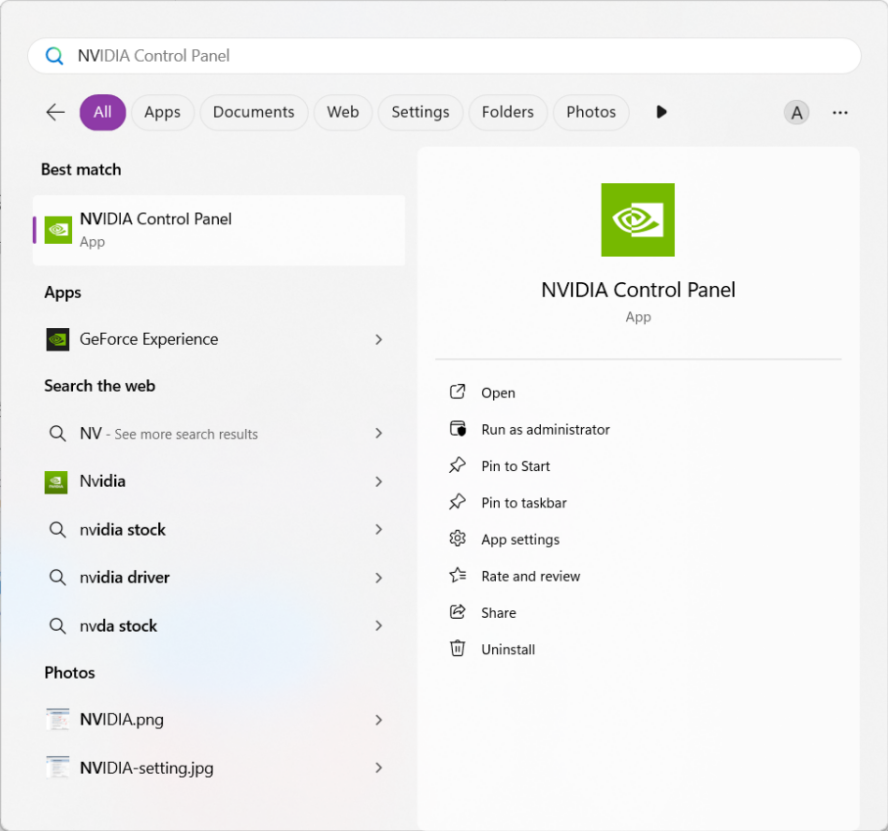
- Search for “NVIDIA Control Panel” and open the control panel.
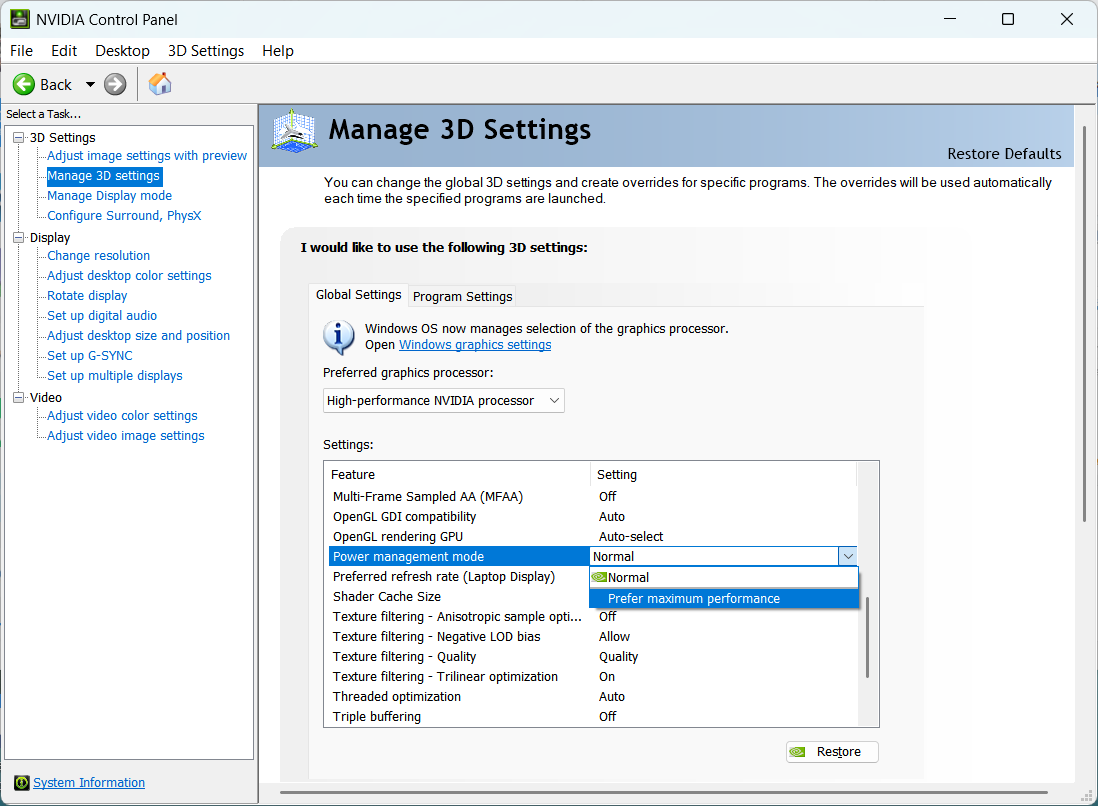
- Select “Manage 3D Settings” on the left, then locate “Power Management Mode” under “Global Settings” and choose “Prefer Maximum Performance”.
Rendering Settings
1. Continue by selecting “Manage 3D Settings” on the left. Under “OpenGL Rendering GPU,” change the option from “Auto-select” to the corresponding graphics card in your computer. (Subject to the actual graphics card)